
The Response Hub brings active and past incidents together. Open an incident to review live CAD details, responders, units, maps, and the actions available to your role.
Use the Response Hub
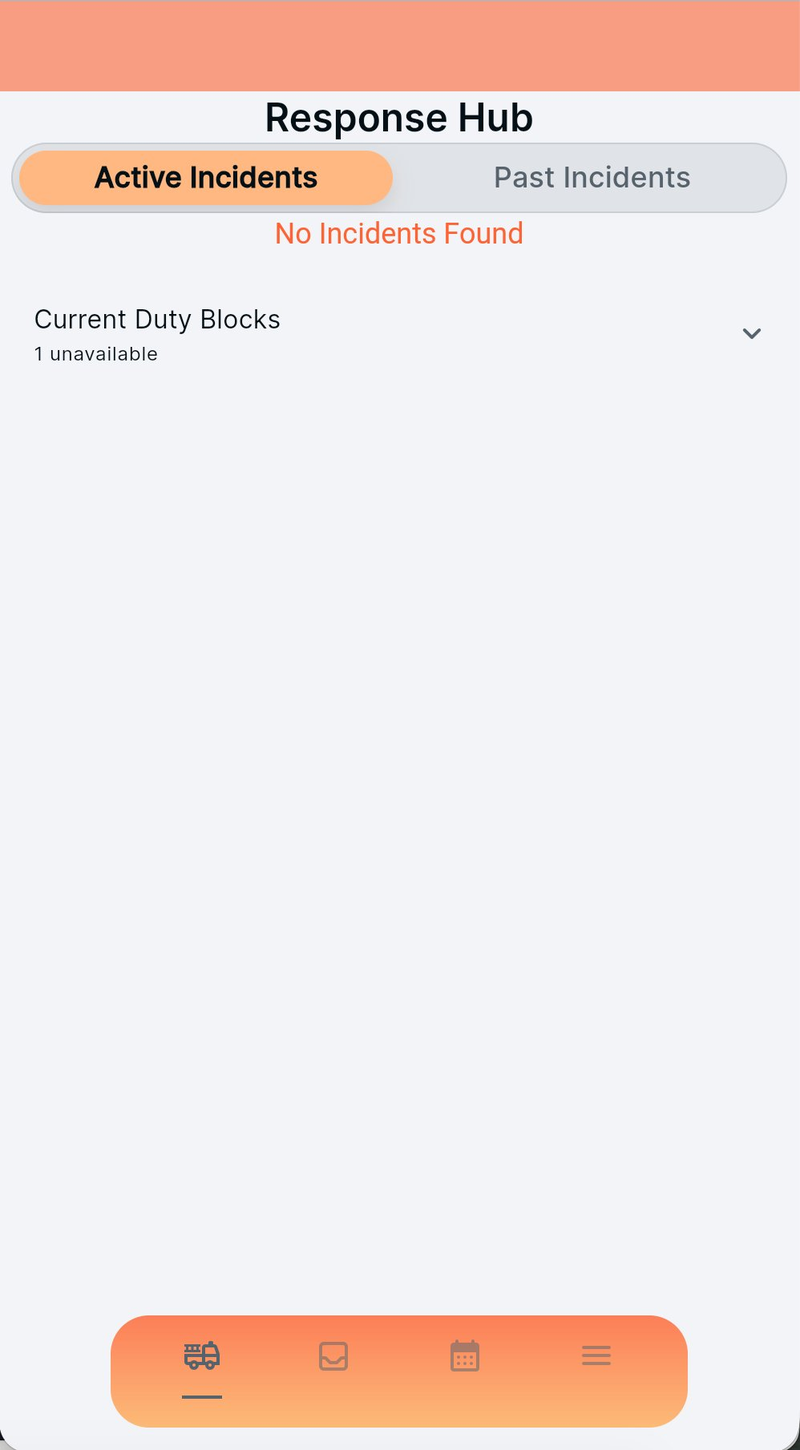
Active incidents
New incidents appear here in real time with the available CAD data. The Current Duty Blocks panel shows members who are currently unavailable across your stations.
On a station display, a new incident can open automatically and return to the hub when the call closes.
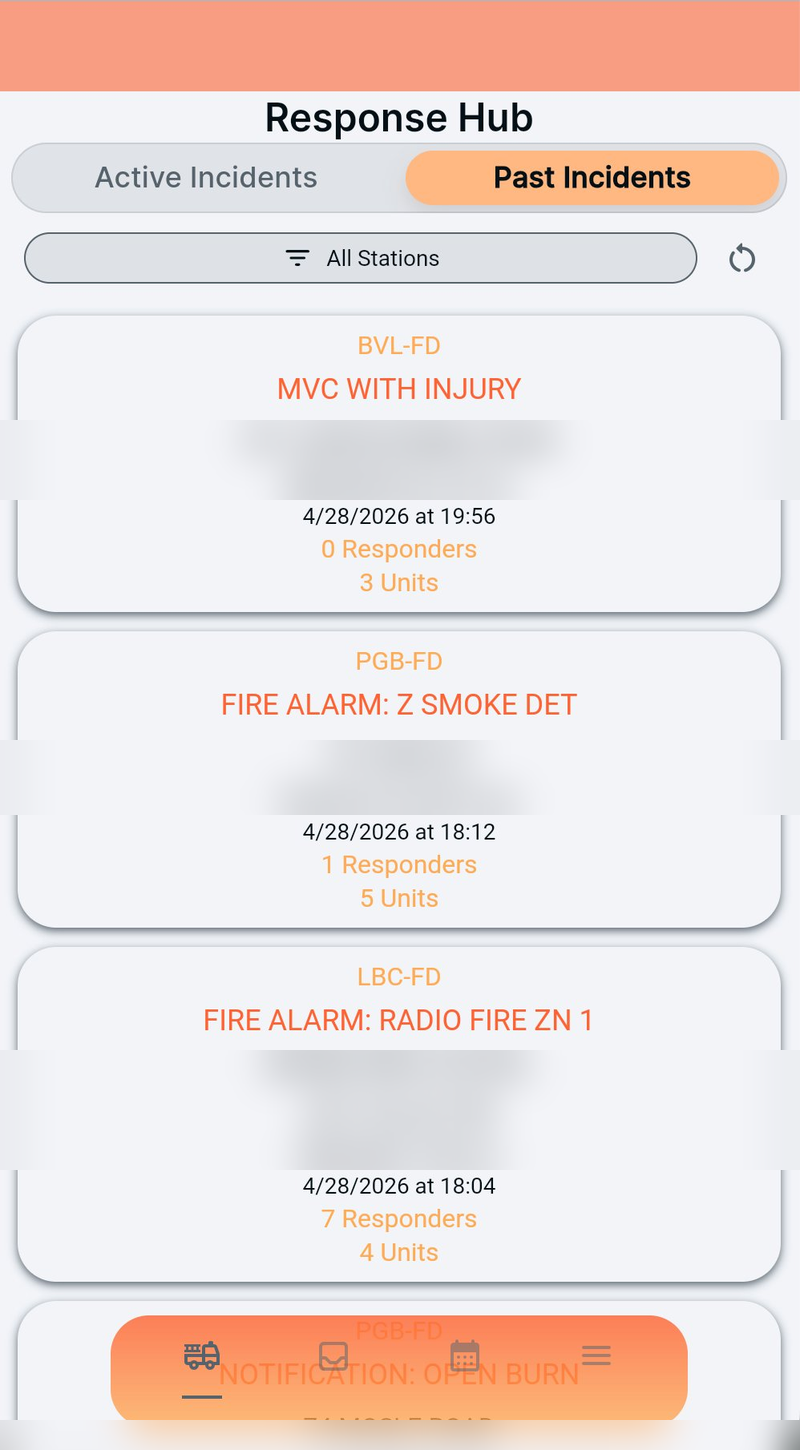
Review incident history
Past incident cards show the department code, incident type, address, date and time, responder count, and unit count. Use the station filter to narrow the list, then open any incident for its details.
Read Incident Details
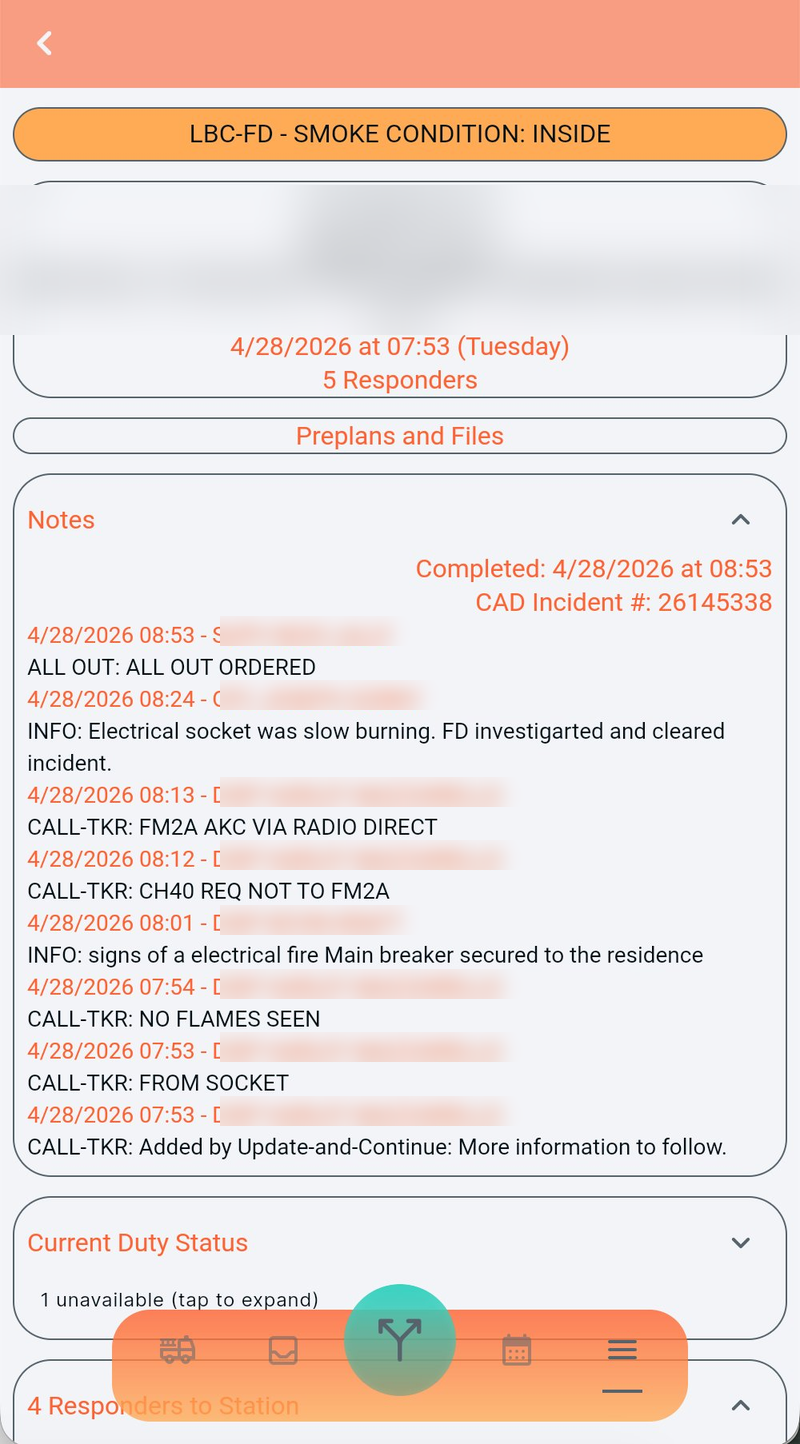
Live notes
The Notes section streams available dispatch updates with timestamps and source information. The header includes incident identifiers and completion information when available. Use Preplans and Files to open documents associated with the incident location.
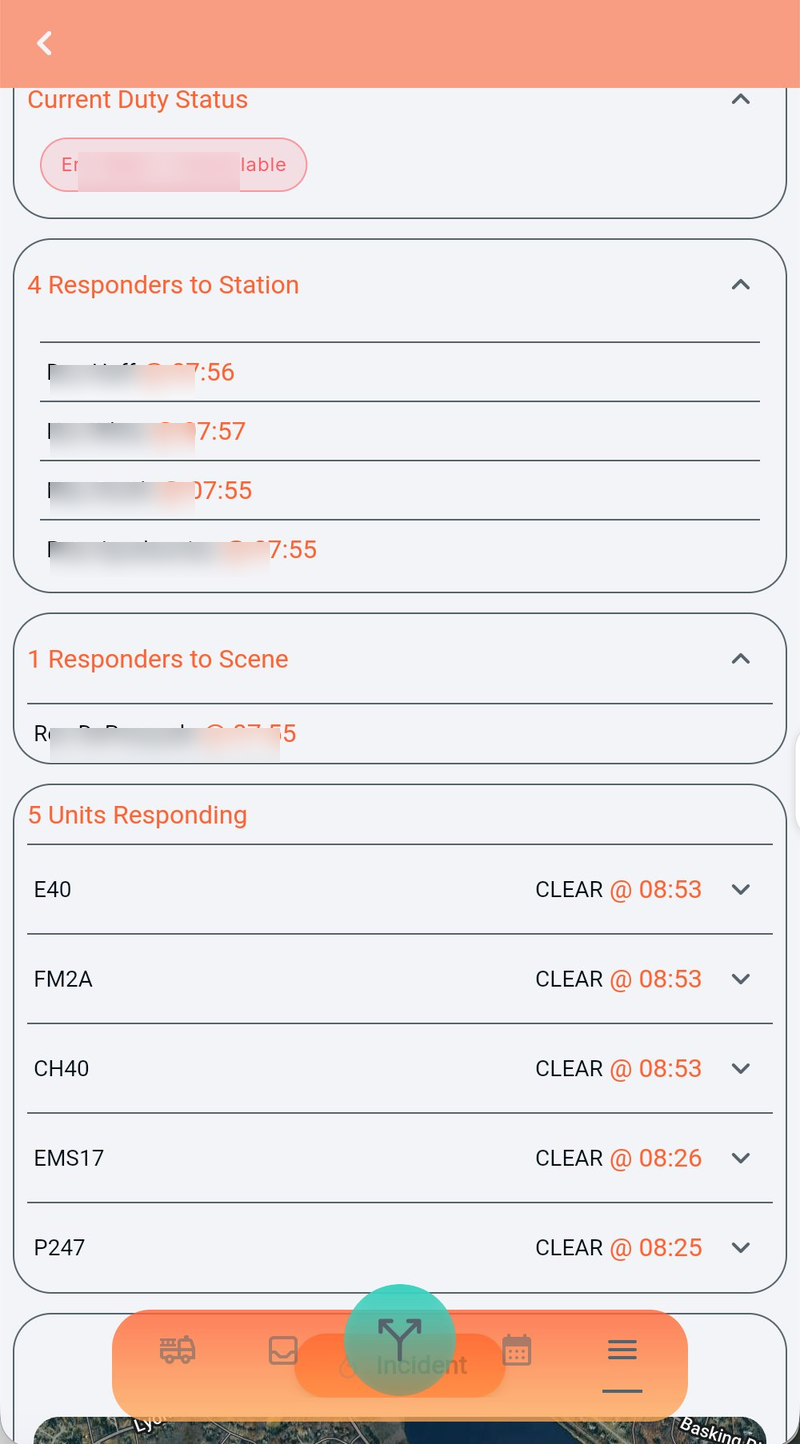
See who is responding
- Current Duty Status: members with active duty blocks.
- Responders to Station: members heading to the station.
- Responders to Scene: members heading directly to the incident.
- Units Responding: apparatus and their current statuses.
Sections can be collapsed to keep the page easier to scan.
Use the map and navigation
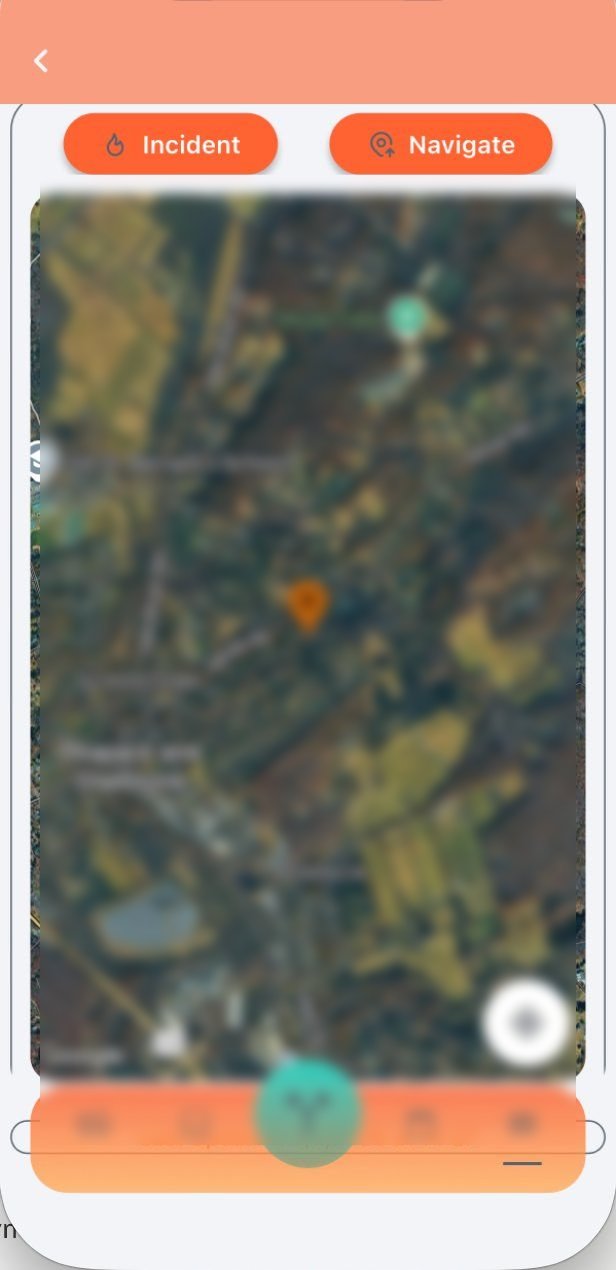
- Incident: recenter the map on the incident.
- Navigate: launch directions using the device's available mapping app.
- Map layers: view configured hydrants, access points, and other agency resources.
Use the recenter control to return to your current view. The page's Last Updated value shows when incident data was refreshed.
Location behavior depends on your choices
Routing and arrival tools can use device location. If your station authorizes Live Location and you enable it, your latest position is shared only after you explicitly choose Share Location for an active incident. Command Bridge does not retain a route history. See the Live Location guide.
Start responding
Open the incident
Tap the push notification or select the incident from Active Incidents.
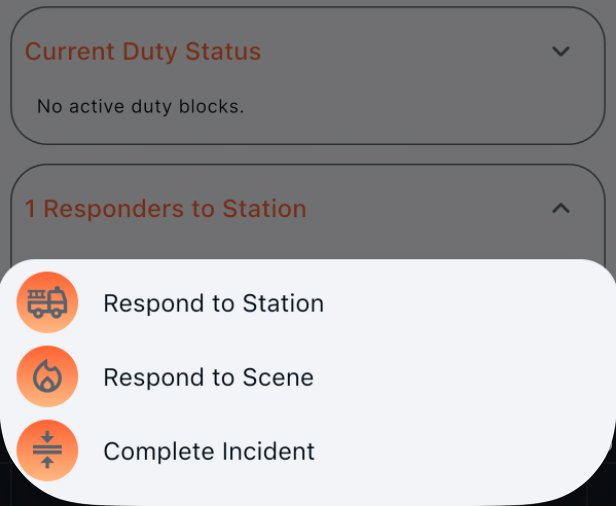
Choose a response
Tap the green action button, then select Respond to Station or Respond to Scene. Complete Incident and other administrative actions appear only when your role has permission.
If you are eligible for Live Location, Command Bridge then asks whether you want to share for this incident. Choose Share Location or Not Now.
While responding
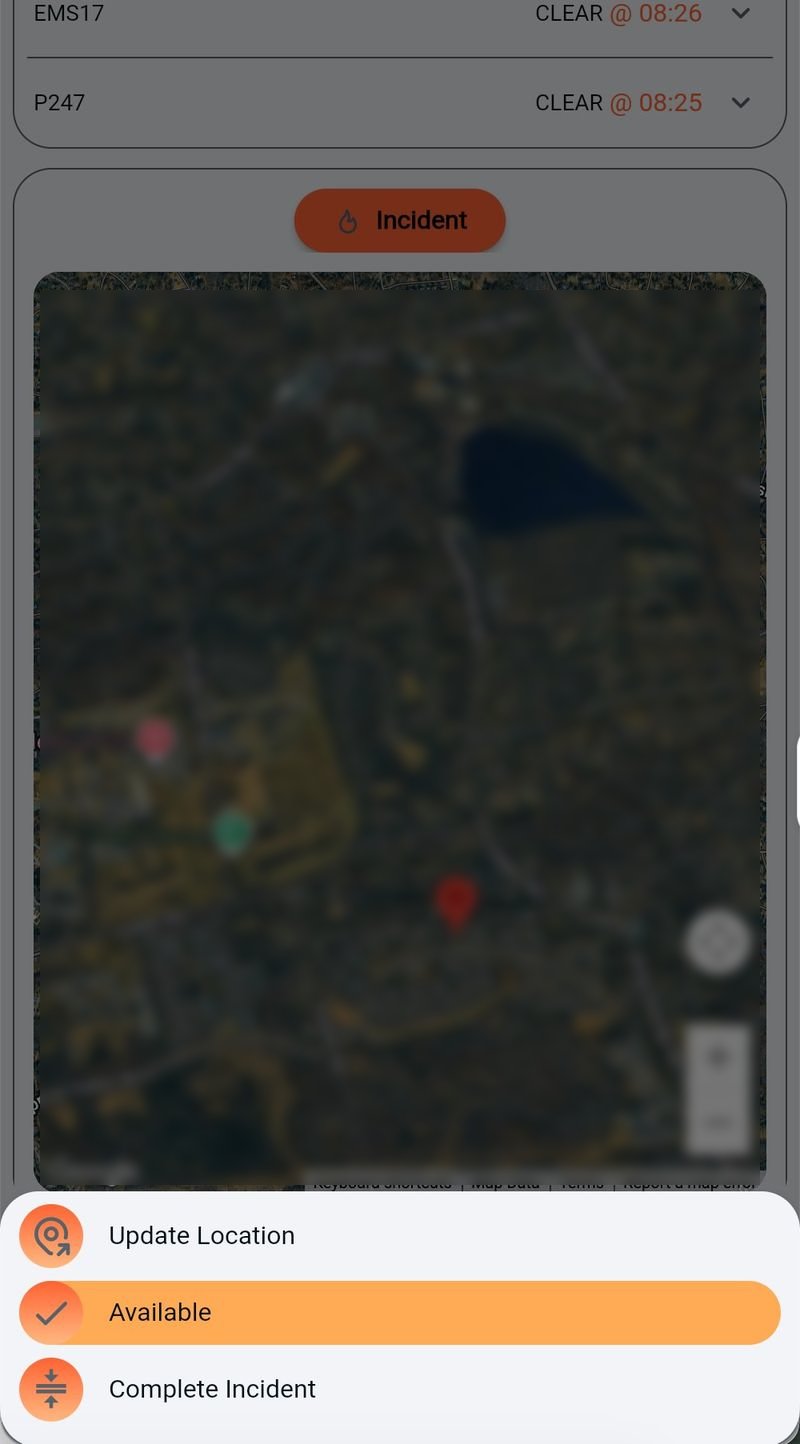
Open the action sheet again to use the actions available for your current response. These can include changing your destination, becoming available, updating location-related information, or completing the incident when permitted.
Arrival and ETA labels update from the response data available to Command Bridge. When Live Location sharing is active, authorized incident users can see your latest shared response position until sharing stops.